


Getting started with Vetta
From sign up to your first live sequence: onboarding builds your workspace, agent and first leads, then you connect a sender and publish.
Updated October 25, 2026 · 8 min read
Welcome to Vetta! Every account starts the same way: a guided onboarding that sets up your workspace for you, so you are looking at real leads before you have configured anything. This guide covers that first hour and the steps that turn it into a running sales machine.
Start here if you are new to Vetta. A calm tour of four key parts: a Lead Scout agent that finds buyers, a sequence that reaches them on LinkedIn, email and WhatsApp, the Inbox that gathers every reply, and a pipeline that tracks the deal. It then shows how to learn the rest: the Knowledge Center and its search box, the Animation and Narrated video of each article, Common questions, linked topics between videos, and how to paste the Knowledge Center link into ChatGPT or Claude and ask it to help you set up Vetta.
Transcript
Alex has signed up for Vetta and he wonders where to start. A Lead Scout agent finds his buyers, a sequence reaches them on LinkedIn, email and WhatsApp, the Inbox collects every reply, and a pipeline board tracks each deal. Then he opens the Knowledge Center and types a question in the search box, like inbox empty, and the answer appears. Under it are the topics and the video tutorials. Each article has a silent animation and a narrated video, and the common questions open with a click. Open the video and the transcript sits beside it, and a small linked topic tag opens another video. He can also paste meetvetta.com/knowledge into ChatGPT or Claude and ask it to help him set up Vetta, and it reads the guides and walks him through it. It works with any assistant that can open a link, and the answers come from the same guides. Start in the Knowledge Center.
Your free trial. Every workspace starts with a 7-day free trial. Vetta asks for a credit card when you start it, but nothing is charged before the trial ends: the checkout shows Total due today: $0.00. After the trial the plan is $99 a month, and you can cancel any time before then.
Step 1: Sign up and run onboarding
Go to app.usedalil.ai and sign up with your work email, or continue with Google or Microsoft. Use your work email: Vetta looks up your company from its domain.
 Onboarding · Scout
Onboarding then runs in six steps, shown as pills at the top of the screen:
- Welcome: Vetta shows the company it found from your email. Confirm it, then add your name and role, which sign every message sent for you.
- Interview: six short questions, each prefilled from your website: what you sell, your ideal customer, the buying signals to watch, your channels, how your messages are written and the size of your team.
- Build: Vetta creates your workspace, your AI skills, your lead agent, your ideal customer, your signals and your outreach sequence.
- Scout: your agent finds your first leads, scored on fit.
- Send: Vetta drafts the first message for one of them and asks you to connect the accounts you send from. You can skip this for now.
- Day one: suggestions to make Vetta fully yours, such as the Chrome extension, WhatsApp and the MCP.
Finally you pick the AI Sales OS plan and start your free trial through a secure Stripe checkout. Every screen, with a clip of each, is in Onboarding: your first hour in Vetta.
Step 2: Meet your agent
Onboarding ends inside your new agent. At the top you see its status: Scout · Active means it is already searching for leads that match your ideal customer, and Sequence · Draft means your outreach is built but not sending yet. Your first leads are waiting in the Leads tab, and fresh ones arrive on the scout's schedule.
Before anything goes out, read what Vetta wrote for you. Review the leads in Reviewing agent leads, and open the steps and messages of your sequence in Working with the agent sequence. To change how messages sound, edit the rulebooks behind them: see Tuning messages with skill files.
Step 3: Connect a sender and publish
Your sequence needs at least one account to send from. If you skipped the Send step in onboarding, connect one now from Settings → Core Integrations:
- Email & calendar: Gmail / Google Workspace or Outlook / Microsoft 365 for email and calendar, or any IMAP/SMTP mailbox for email only (guide)
- LinkedIn: sign in to LinkedIn in the window that opens, then send and sync your LinkedIn conversations (guide)
- WhatsApp: scan a QR code to link your number (guide)
Each account then has settings that decide what comes into Vetta:
- Mailboxes have Contact auto-creation (Sent and Received, Sent or None), which decides who becomes a person in your CRM. On None, emails only show for people already in your CRM, so an inbox can look empty.
- LinkedIn and WhatsApp have Sync: Everything brings in all your conversations, and Selected only those with people already in your CRM with their LinkedIn URL or phone number. A new LinkedIn account starts on Selected.
- Visibility (Email visibility or Message visibility) decides how much your teammates can read. You always see everything on your own account.
Connecting your email, calendar, LinkedIn and WhatsApp so Vetta can see your conversations. It goes through Settings, then Integrations under Core Integrations, and the card for each channel: Add on the Email card for Google, Microsoft or IMAP and SMTP, email visibility (Everything, Subject and metadata, Metadata), Contact auto-creation, and for LinkedIn and WhatsApp the Message visibility and Sync (Everything or Selected) settings. A new account shows Importing, then Active. Use it for first-time account setup. Each setting has its own video.
Transcript
Your CRM in Vetta works best when it can see your conversations. Open Settings, then Integrations under Core Integrations. Each channel has its own card: email, Google calendar, LinkedIn, WhatsApp, and your AI meeting note taker. To connect a mailbox, click Add on the Email card, and choose Google, Microsoft, or any other provider over IMAP and SMTP. Back on the card, decide what your team can see. Everything shares the subject, body and attachments. Subject and metadata leaves the body out, and Metadata shows only who and when. You always see your own messages in full; this only changes what teammates see. Contact auto-creation adds the people you email: sent and received, sent only, or none. Your calendar works the same way, with its own visibility and contacts from your meetings. LinkedIn and WhatsApp connect through a secure sign-in, and each account has two settings. Message visibility decides how much teammates can read: Everything, or Metadata, which shows only who and when. Sync decides which conversations come in: Everything, or Selected, only the ones with people already in your Vetta workspace. A new account shows Importing while its history comes in, then Active, and your contacts' timelines fill in on their own.
Once the account is attached to your sequence as a sender, publish the sequence and it starts working through your leads within the workspace's sending limits and the sequence's sending window. Your scout keeps adding new leads either way.
You can also add Vetta on WhatsApp and ask your workspace anything from your phone, like messaging a colleague (guide).
Step 4: Follow the Getting Started guide
The Getting started card in the sidebar counts the days left in your trial and opens the in-app guide. It is a checklist with a short walkthrough for each part of Vetta:
- Integrate your accounts
- Core Integrations
- CRM Entities
- Pipelines
- Workflows
- Sequences
- AI Layer
There's also an onboarding video and a Book a Demo option if you'd like a guided tour.
Step 5: Bring in your existing contacts
Your agent fills your CRM with new leads. To add the people you already work with:
Option A: Spreadsheet import
- Open People (or any entity)
- Open the menu on the green arrow next to New and choose Import
- Upload your CSV or spreadsheet, pick the Import Mode (Create Only, Update Only, or Create & Update) and map the columns. Map at least one unique value (an email, a phone or a LinkedIn URL), because that is how Vetta recognises people you already have
Importing contacts from a spreadsheet. On People, open the menu next to New and click Import. Choose the Target Database, the import mode (Create Only, Update Only or Create and Update), upload a CSV, XLSX or XLS file, and check the preview. Map columns, including Full name and Email; Next Step stays off until a unique value such as email, phone or LinkedIn URL is mapped, because that is how existing people are recognised. Validate data flags problems, and you can untick rows.
Transcript
Your contacts are sitting in a spreadsheet, and you want them in Vetta without typing a single row. On People, open the menu next to New and click Import. Target Database is where the rows go, here People. Then choose the import mode. Create Only adds new people and skips anyone you already have. Update Only refreshes the people you have and skips the rest. Create and Update does both. Now upload your file, a CSV, XLSX or XLS, and check the preview. Next, match your columns. Job Title, City and Persona matched on their own, because their names fit. Set Full name, which splits into first and last name, then Email. Until a unique value like an email, a phone or a LinkedIn URL is mapped, Next Step stays off, because that's how Vetta recognizes people you already have. Validate data flags anything that doesn't fit. Advisor isn't a Persona option yet, so add it. Last, untick any row you want to leave out, start the import, and the new people land in your list. After each roundtable, Alex pastes the list into Claude. Claude imports 40: 34 new, 6 updated. Claude, ChatGPT or any assistant you connect to Vetta works on your real workspace, so paste the next list, then go bigger. In Vetta, check the 34. Bigger files still use Import.
Option B: Chrome Extension (LinkedIn) Install the Vetta Chrome extension, browse any LinkedIn profile or company page, and sync it into your CRM; Vetta captures the person's and company's details from the page. On a Sales Navigator search, a bar above the results lets you tick profiles and click Push profiles to Vetta, and send them straight to People, an agent, a pipeline or a sequence.
Pushing many leads from LinkedIn Sales Navigator into Vetta in one go. With the Vetta extension installed, a bar appears above your results and each profile shows whether it is already in your CRM. Tick profiles or use Select all, then click Push profiles to Vetta. Basic info always comes along (name, job title, city, company, LinkedIn link), optional email or phone shows a credit cost badge, and Add to people skips Leads or sends them to an agent, pipeline or sequence. Imported profiles get an Imported to Vetta badge.
Transcript
On a LinkedIn Sales Navigator search, with the Vetta Chrome extension open, you've found the right people, and copying them over by hand would take all afternoon. A bar appears above your search results, and every profile shows whether it's already in your CRM. Tick the profiles you want, or use Select all for the whole page, then click Push profiles to Vetta. You can push your selection, or the first profiles of the search, as many as you set. Basic info always comes along: the name, job title, city, company and LinkedIn link. Add an email or a phone number if you need one, and the badge at the top shows what it will cost. Turn on Add to people to skip your Leads, or send them straight to an agent, a pipeline or a sequence. Save, and each profile gets an Imported to Vetta badge. Every Friday, Jonas pushes his search, then asks Claude to add them. Claude adds 41 and skips 6. Claude, ChatGPT or any assistant you connect to Vetta works on your real workspace, so repeat this each push, then give it a bigger job. In Vetta, preview the first messages. The sequence sends them, not Claude.
Pushing a single LinkedIn profile into Vetta with everything set in one step. Tick one profile and click Push profile to Vetta, turn on Enrich email (the badge shows the credit cost first), turn on Add custom field data to fill one of your own fields, such as the event where you met, then choose Send to agent or open Add to for a pipeline, a sequence or both. Save confirms each step. Use it for a high-value prospect. For many profiles at once, see the bulk push video.
Transcript
On LinkedIn, with the Vetta Chrome extension open, tick just one profile and click Push profile to Vetta. Turn on Enrich email, and the badge at the top shows the credit cost before you commit. Then turn on Add custom field data. Pick one of your own fields and give it a value, like the event where you met, and add another field if you need one. Now decide where it goes next. Send to agent hands it to one of your Lead Scout agents. Open Add to, and drop it into a pipeline, a sequence, or both. Save, and the bar confirms every step: imported, sent to the agent, added to the pipeline and enrolled in the sequence. One push, and it lands in Vetta already moving, all without leaving LinkedIn.
Option C: Let conversations build your CRM Once channels are connected, conversations flow into the Unified Inbox; click Add to people on any thread to create the record. Email sync can also auto-create contacts from the people you email and meet.
Step 6: Build more sequences
Onboarding gives you one sequence, run by your agent. For other audiences or campaigns, build your own:
- Go to Sequences (in the Automation section) and create a new sequence: from a template or from scratch
- Build your flow in the visual editor: an email step, a LinkedIn touch, conditions for branching
- Personalise with variables like
{{currentPerson.name.firstName}}, and with AI variables that write a line or a whole message for each contact; a Qualify Lead step can check fit before anyone is contacted - Review settings (sending window, reply behaviour), then Publish. Sending limits are not set per sequence: they live in Global Sending Limits and apply to every sequence in the workspace
- Add leads and launch them from the To Publish tab
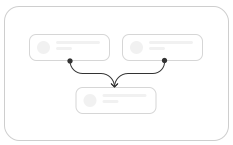


Full walkthrough: Creating Your First Sequence.
What's next
- Understand the Vetta data model
- Learn about Vetta Brain insights
- Automate your process with Workflows
- Master the Unified Inbox
Need help? Our support team is available at hello@meetvetta.com; we reply the same business day (9:00 to 17:00 CET, Monday to Friday).
Common questions
Do I need a credit card for the free trial?
Yes, Vetta asks for one when you start the trial, but nothing is charged before the 7 days end: the checkout shows Total due today: $0.00. After the trial the plan is $99 a month, and you can cancel any time before then. See Registration and plan selection.
My sequence says Draft and nothing is sending. Why?
A sequence needs at least one connected account attached as a sender before it can be published. Connect one from Settings → Core Integrations, then publish the sequence. See Step 3: Connect a sender and publish.
Why does my inbox look empty after connecting a mailbox?
Check the mailbox's Contact auto-creation setting. Emails only show for people the mailbox created or people added with that email, so on None you only see people already in your CRM. Switch it to Sent and Received or Sent to see more. See Step 3: Connect a sender and publish.
Why don't I see all my LinkedIn conversations?
A new LinkedIn account starts with Sync on Selected, which only brings in conversations with people already in your CRM with their LinkedIn URL. Switch it to Everything to sync them all. See Step 3: Connect a sender and publish.
How do I import my existing contacts?
Open People, open the menu on the green arrow next to New, choose Import and upload your CSV or spreadsheet. You can also capture profiles with the Chrome extension or add people from inbox threads. See Step 5: Bring in your existing contacts.
Why won't the import let me continue?
You have to map at least one unique value (an email, a phone or a LinkedIn URL): that's how Vetta recognises people you already have. See Step 5: Bring in your existing contacts.
Where do I set how many messages a sequence sends per day?
Not on the sequence. Sending limits live in Global Sending Limits and apply to every sequence in the workspace. See Step 6: Build more sequences.
Can someone walk me through Vetta?
Yes. The in-app Getting started guide has an onboarding video and a Book a Demo option, and support at hello@meetvetta.com replies the same business day (9:00 to 17:00 CET, Monday to Friday). See Step 4: Follow the Getting Started guide.
Still stuck?
We reply the same business day, 9:00 to 17:00 CET, Monday to Friday.